Recording Register entries and management of progress
Are you a new user? Read this first.
If you’re unfamiliar with the Recording Register entries and management process, please read the following two sections in the topic TriLine GRC and Register before referring to the material in this topic:
within TriLine GRC, if the person has a TriLine GRC account and Position, or
via the Portal, with this person being a self added, or an admin added TriLine GRC Portal User.
The Owner(s) for that Register Type will receive a notification advising that a Register entry has been recorded. The first default Owner will be the Managed By, or delegate management of this Register entry as required. The person creating a Register record can choose to receive a confirmation email of the creation of their Register record.
The Managed By Position:
reviews the Register Record,
adds relevant information, or links to the Register entry,
assigns Tasks, as required, to Positions within TriLine GRC to take any required action,
responds to TriLine GRC alerts regarding any Task progress, and
changes the entry’s status as required by that Registers processing procedures, till the record is progressed to a ‘Closed’ status.
Accessing a Registers List
Note: To see a Registers List, the logged in Position must have the correct Security Group membership.
Positions which are members of Security Groups with ‘View’ and ‘Edit’ access to Register Records, can review those Register records via the ‘Registers List’ Page:
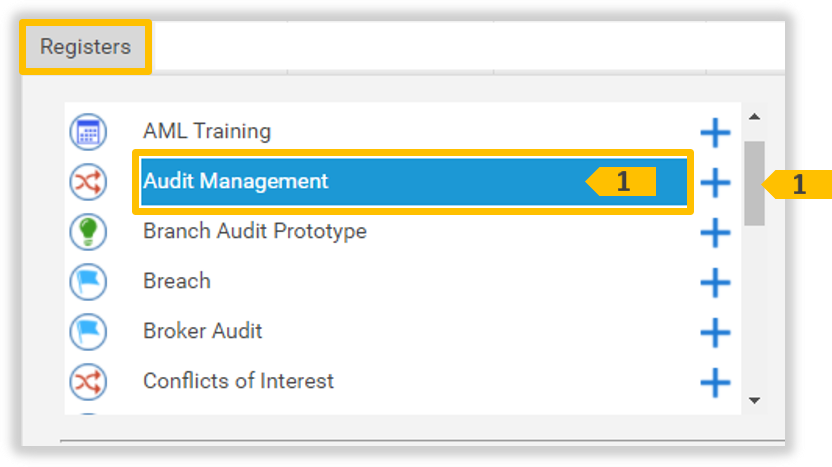
From the Main Menu, select Registers, and then click the Register Type 1 you wish to view.
Note: The Registers display here will be different in your system.
This page displays all entries recorded in this Register to which you have security record access of ‘View’ or ‘Edit’. Records displayed may have default Register Status filtering 3 applied. Records may also have record filtering 12 applied.
Use the controls in this panel to save and load different grid layouts.
3
Register List Status selector
When you first open the Register List, only Register Records with the Default Statuses, configured by the Register creator, are listed. Use this selector to change which Register record Statuses you wish displayed in the Register List. Once the required Statuses are selected, click the Update List 4 icon to view those records in the Register List.
4
‘Update List’ icon
Click this icon to view those records in the Register List of the Status 3 selected.
Use the controls in the Column Headers to filter the Records in Register 8 List. These filters will be displayed in the Filters applied 15.
8
Register Record list
Displays the List of Register Records according to the search filter you have applied (if any). Click on a Register Record to display the ‘Register’ Page and view/edit the Register record details.
9
‘Add Note’ icon
Click this icon to add a new Note to this Register record. The ‘Add Note’ window is displayed.
10
‘Add Attachment’ icon
Click this icon to add a new Attachment to this Register record. The Add Attachment window is displayed.
Use the controls in this panel to move between List Pages and set the number of Register Records to get next.
12
‘Filters Applied’ panel
Click this link to change the current applied filter.
13
‘Hide/Show Columns’ option
Click this icon to hide or display list columns using the Field Chooser.
14
‘Export’ option
Click this icon to export the listed Register Records as a Microsoft Excel, or Word file.
15
‘Show Advanced Filter’ option
Click this icon to filter the Register List using the Filter builder.
16
Page Help option
Click this icon to display basic information for working with the Registers List.
The ‘Register’ Page
The Register page contains all information on the selected Register entry and allows updating to all fields by Positions with membership of a Security Group that has ‘Edit’ access to this record.
The ‘Register’ Page
The ‘Register’ Page elements
ID
Element
Description
1
Register Title
The Type of the Register List being viewed.
2
Register Number selector
This field displays the current Register number record and can be used to open other Register records. This selector is filtered by the Register List.
3
Register record Title field
This is value in the first register field as displayed in the Information tab.
4
Register_Record_tabs
The information in an Register Record is split into tabs. Click on a tab to view related Register information.
5
‘Save’ option
Click the Save icon to update this Register Record. Note: This icon only displays if your Position’s Security Group has ‘Edit’ security access to this record.
Click this icon to delete this Register Record. A ‘Confirm Delete’ dialog is displayed to remind you that deleting this Record will result in loss of data. Note: This icon only displays if your Position’s Security Group has ‘Edit’ security access to this record. When an Register Record is deleted, it is not instantly destroyed—it is flagged for deletion, and is retained in the database for a set period of time configured by the Administrator. Once the delete retention period has elapsed, TriLine GRC will permanently delete this record. Records can be recovered (undeleted) before the Deletion Date by changing the Record Status back to ‘Active’.
8
‘Links’ option
Click this icon to view and update all records linked to this Register.
9
‘Record History’ option
Click this icon to view all audit records associated with this Register record.
The ‘Information’ tab
This tab displays the Register Information including the Number, ‘Title’, who’s Managing, the Status, who created the record and when.
The Information ‘Details’ tab
The Register ‘Information’ tab elements
The Register ‘Information’ tab elements
ID
Element
Description
1
Register ‘Number’ field
Displays the unique Register number. The Administrator can set different prefix letters for each Register Type. Numbers are allocated sequentially from the last highest number.
2
Register first field label
This is the label of the first field of this Register record. It’s default Value is ‘Title’, however it can be customised to display any required label.
3
Register_first_field_value
This field contains the value of the first field in this Register record. By default it will contain the Title of the Register record, however see label 2 for what this field actually contains.
4
Spell check icon
Click this icon to check the spelling in the Title field 3.
5
Created information
This Register record’s creation date, creators name and Title.
6
‘Managed By’ field
Displays the Position Managing this Register record. A Managed By position must belong to a Security Group that has ‘Edit’ access to this record.
7
‘Status’ field
Displays the current Status of this Register Record. Status values can be unique to this Register.
8
‘Tags’ pane
Use Tags to group this Register Record with other Records in TriLine GRC of a related or similar nature. Note: If you want a Tag that isn’t available when you click the field, contact your Administrator to add that Tag to the selection list.
The ‘Details’ tab
This tab displays all the information recorded in this register form. It may contain addition (backend only) fields that where not accessible to the original register creator, but are required information post Register creation and before the record can be closed.
Note: The contents of this tab will appear different on your system for each Register type.
The ‘Details’ tab
The ‘Details’ tab elements
ID
Element
Description
1
Warning
This warning will only appear as required. Fields this warning apply to are easily identified by the yellow shading.
2
Form
All Register Form Fields for this Register Type are contained in this area. Depending on the Form Fields configured, some of the Fields may have been completed by the Register record creator, while others may be incomplete. In the example shown, many of the fields serve as a list of information collected and actions performed when a gift is received into the organisation. These fields can be edited as required, by this Register Record Managed By Position, or any other Position with in Security Group with ‘Edit’ access to this Register Record.
3
Section_Header_field
This shaded field provides a visual divider between sections of the Register Form.
4
Example Register Form field
An example Register Form field consisting of the label 4, the field 5 and optional, a Field Help icon 6.
5
Register Form Field
A Register Form Field can be one of several types. Note: Form Fields with a red asterisk * are Required Fields that must be completed before the record can be saved.
6
Field Help icon
Each Register Form Field may include a Field Help icon. Click the icon to display basic information to help you fill in the field.
The ‘Notes’ tab
The Notes tab can be used to add any relevant information relating to this Register record, as required. Positions with membership of Security Groups with ‘View’ or ‘Edit’ access are permitted to add Notes. Positions with ‘Edit’ access can also Update or Delete existing Notes.
Use the controls in the Column Headers to filter the Notes in the list.
5
Notes list
Each Note in the list consists of two parts: the top part is the Note itself, and the bottom part (shaded) displays the Name of the person who created the Note plus a date of when the Note was created.
6
‘Edit Note’ icon
Click this icon to Edit a Note. The ‘Edit Note’ window is displayed. Note: This icon only displays if you have ‘Edit’ security access to this Register record.
7
‘Delete Note’ icon
Click this icon to Delete a Note. A ‘Confirm Delete’ dialog is displayed to remind you that deleting this Record will result in loss of data. Note: This icon only displays if you have ‘Edit’ security access to this Register record.
The ‘Tasks’ tab
The Tasks tab display task created for this Register record. A Register task can be cyclic scheduled, or Adhoc (manually) scheduled.
The ‘Tasks’ tab
The ‘Tasks’ tab elements
ID
Element
Description
1
‘Add Task’ icon
Click this icon to add a new Task. The ‘New Task’ window is displayed.
2
‘Hide/Show Column’ icon
Click this icon to hide or display list columns using the Field Chooser.
Use the controls in the Column Headers to filter the Tasks in the Tasks 6 list.
6
Tasks list
All Tasks created for the Register record are listed here. Click on a Task to view or edit it in the ‘Edit Task’ window.
7
‘Copy Task’ icon
Click this icon to create a copy of the Task. The ‘Copy Task’ window is displayed. (This window is similar to the ‘New Task’ window, but it is pre-filled with information from the Task being copied.)
8
‘Tasks History’ icon
Click this icon to see History for of this Task. The ‘Tasks History’ window is displayed. Note: This icon will appear when a task has been generated and then completed.
9
‘Delete Task’ icon
Click the icon to delete the Task. A ‘Confirm Delete’ dialog is displayed. Note: Deletion is instant and permanent. Do not do this if you require to retain task history for audit or reporting purposes. Once you confirm the removal, the Task is no longer displayed in the Tasks List 6.
The ‘Attachments’ tab
The attachment tab displays all document attached to this Register record. Only Edit access security may remove these attachments. Positions with membership of Security Groups with ‘View’ or ‘Edit’ access may add additional attachments to a Register record.
The ‘Attachments’ tab
See ‘Attachments’ in the Glossary for instructions on how to manage attachments using the ‘Attachments’ tab.
The ‘Attachments’ tab elements
ID
Element
Description
1
Attachment field
Drag one or more files here to be automatically attach and (after a few seconds pause) reappear in the Attachments 6 List.
2
‘Browse…’ button
Click this to select an attachment. A File window opens so that you can choose a file to attach. The file name is displayed momentarily in the Attachment 1 Field, and (after a few seconds pause) reappear in the Attachments 6 List.
Use the controls in the column headers to filter the Records.
6
Attachment List
Any files that have been attached (uploaded to TriLine GRC and attached to this Record) are displayed in this list.
7
Delete icon
Click this icon to remove that attachment. A ‘Confirm Delete’ dialog is displayed.
8
View icon
Click the icon to download and open the attachment.
The ‘Security’ tab
The Security tab is only shown Positions in Security Groups with Edit access security to this record.
Each Register record is create with the Default security setting of the Register Type. The security of each record can then be changed, if required, to have a different security setting. The Register Record Managed By must also be in a Security Group that has ‘Edit’ access.
Select a Record Security Rights level for the Security Group. Note: The Security Group containing the Register Managed By must be given ‘Edit’ Rights to the Register Record. Tip: Create an Register Security Group (or similar) for each Register Type and assign the Register Manage By Positions to that group.
4
Security_Group_Membership icon
Click this icon to display the related Security Group Membership List (see item 6 below).
5
Security Group Membership List
This list is displayed when you click the Security Group Membership icon (see item 5 above) for a Security Group. This function is useful if you need to confirm which Security Group a Position is a member of before assigning Record Security Rights to that group.
6
‘Security Access Summary’ icon
Click this icon to display all Positions that have access to this record, the type of access, and from which Security Group this access was granted from (including Task Teams).
The ‘Links’ window
The Links tab displays all connections to other records in TriLine GRC.
The ‘Links’ window
The ‘Links’ window elements
ID
Element
Description
1
Module tabs
Click the appropriate tab to view, and if you have Edit access security, create and remove links for that Module’s Records. The tabs displayed are dependent on the modules your site has Licenced.
2
Record Selector field
Each of the Module tabs 1 has a Record Selector field. Click the Record Selector dropdown to view a list of available records that you can link to this Register record. Select the record you wish to link then click the Add Link icon 3. Note: The drop-down list only displays available Records to which you have security access.
3
‘Add Link’ icon
Once you have selected a Record 2, click the ‘Add Link’ icon to create a link from that record to the Register record. The linked Record is displayed in the Linked Record List 7.
Use the controls in the column headers to filter the Records.
7
Linked Record List
This list displays all linked Records of the currently selected Module Record Type 1. Click a Record in this list to open the Record in its own page for viewing or editing depending on your Security access.
7
‘Remove Link’ icon
Each Record in the list has its own ‘Remove Link’ icon that will display for Edit access security. Click this icon to remove the link to the Record. A Confirm Delete dialog is displayed. Once you confirm the link’s removal, the Record is no longer displayed in the Linked Record List 6. Note: The record link will also be removed from the Links Module tab of the corresponding record.
9
‘Close’ button
Click this button to close the Links window.
The ‘Record History’ window
Use this window to view all changes to this Register record and its task record(s) within the audit days period.
TriLine GRC users can record an Entry in a Register via the Main Menu. The different types of registers that you may record entries for are displayed here with an add icon. You cannot add new records to Registers without an add icon.
From the Main Menu, select Registers | click the icon of a Register; e.g. Gifts and Hospitality. (A hint will appear if you hover over each create icon.)
Note: The Register Types listed here will be completely different on your system.
The ‘New Register record’ window is displayed.
Create a New Register record by completing the following three steps:
This is the Type of New Register you are recording.
2
Page Help icon
Click this icon to display basic instructions for creating a new Register.
3
‘Click here for more information’ button
This button will only appear if this Register has further instruction for you to follow. Click this button to display those further instructions for creating this Register.
4
‘Step’ indicator
Displays the current Step and the Step’s sequential position (e.g. ‘Step 1 of 5’, ‘Step 2 of 5’ and so on).
5
‘Previous’ step icon
This icon is disabled at the first Step.
6
‘Next’ step icon
Click the Next icon to display the next Step of the creating a new Register process.
7
Register Form area
This area contains the Register Form Fields. The fields displayed in this area are unique to each Register Type. Section Headers are shaded fields that visually divide the form into logical sections. Enter fields as required.
8
‘Required Field’ indicator
Any field marked with a red asterisk * is mandatory and must be completed.
9
Field ‘Help’ icon
Hover over this Help icon for information to help you fill in the field.
10
Form_Fields_Scroll_Bar
If visible, use this to scroll down to see the rest of the fields on this Form.
11
‘Close’ icon
Click this icon to cancel creating this new Register.
Step 2 - The Attachments
To add attachments to your Register, click the Browse...13 button to browse for an attachment. A File window will open, navigate and choose a file to attach. The file name is displayed in the Attachments 12 field.
Add more attachments by clicking the Add File15 link and repeating instruction (1).
Displays the file that will be uploaded and attached to this Register when it is created.
13
‘Browse’ button
Click this button to display and select a file to be attached to this Register when it is created. The selected file will appear in the Attachment File field 12.
14
‘Remove’ button
Click this button to remove the file displayed in the Attachment File field 12.
15
‘Add File’ button
Click this button for each addition attachment you require to added to this Register.
Step 3 - The Finish
Check Send me a confirmation email16 to receive a notification email confirming the creation of this Register record.
If required, click the Previous icons 5 to review your Register information prior to submitting. Use the Next icons 6 to return to this step.
Click Click here to finish17 to record the new Register
If there are no errors, this page will close with a message that your Register was successfully created. If there are any errors, they will be displayed in red at the bottom of the page. Use the Previous icon 5 to return to the fields that need correcting. Once done, click Next icon 6 to return to Step 3 and re-attempt to finish. Repeat until all errors are corrected.
Create New Register Step 3
Create New Register Step 3 page elements
Create New Register Step 3 page elements
ID
Element
Description
16
‘Send me a confirmation email’ checkbox
Tick this checkbox if you want to receive an email at the conclusion of reporting this Register.
17
‘Click Here To Finish’ button
Click this button to create the Register. When you click this button, TriLine GRC checks to make sure that all Required Fields necessary for this Register’s creation have been completed. Any incorrect, or incomplete fields are highlighted with either a red message at the bottom of the page, and a icon next to the field that needs correcting.
Managing Registers
Managing a recorded Register entry
Once an Register entry has been recorded, a notification, if configured by the administrator, is sent to this Register’s Type Owner(s). If the Nomination field is being used on the form, this selected Position will be assigned to be the ‘Managed By’ Position of this Register record and will receive a notification also. Otherwise, the first Register Type Owner will be assigned to be the ‘Managed By’ Position of this Register record.
The Register Record ‘Managed By’ Position reviews and manages their Register Records by:
reviewing the Register Information and Details
reading the existing Register Notes and adding any relevant Notes as required,
linking to any additional Module or Register records that have not already been cover by the default linking,
creating and assigning Tasks that are required to be completed in order to get the Register to a ‘Closed’ status,
attaching any supporting documents such as Policies, Regulations and Procedures, and
checking that all Positions involved in this Register Record have the appropriate Security Rights to the Register Record.
Finally, when all requirements and conditions are met, changing the Register Status to a ‘Closed’ Status.
Assigning Tasks to resolve the Register
In order to resolve the Register to a ‘Closed’ Status, the Register Owner may require creation of Tasks to be Actioned By various Positions.
To make things easier, your Administrator (or Register Designer) can configure Predefined Tasks for those actions that are always performed when a particular Type of Register is recorded.
Click the My Summary menu option to display the My Summary page. If there are ‘Open’ Register records which you are the Managed By Position, the ‘My Registers’ tab will appear. Click the My Registers tab.
Click on a Register record to open that record on the Register page. Update the Register as required.
Accessing a Register List
From the main menu, mouse hover over, or click, the Register menu to display the Register Types. Scroll 1 (if required), then click the required Register Type 2.
The select Register Type List is displayed. Use the Column Headers1 to Filter, search and navigate the Register List. Select and Un-select the Registers Statuses 2, then click the show records 13 icon, if required.
Add a new Note on List
Click the Add Note icon on the Register record in the Register record list.
Enter the Note text in the edit area 1, and click the Save 2 icon to save this note. (Or, click the Cancel 3 icon to stop adding the Note.)
The Note is added to the Notes list. Open the Register record to view the Notes list on the Notes tab.
Add a new Attachment on List
Click the Add Attachment icon on the Register record in the Register record list.
The Add Attachment window displays. click the Browse 1 button and select your Attachment, or directly drop Attachment in the Drop files 2 field. (Or, click the Cancel 3 icon to stop adding the Attachment.)
After a few seconds, the Attachment will load from this field into the Attachments list. Open the record to view the Attachment list on the Attachment tab.
Click on a Register record in the list to open The ‘Register’ page. Click the Information tab. Update the field values as required. Click the Details tab 1 . Update the field values as required.
Hover over, or click the Menu Options 3 icon, then click the Save option. Note: If the Save option does not displayed, you do not have security access to update the values on this Register record. The Save action applies fields on the Information, Details and Security tabs.
Notes, Tasks and Attachments can be viewed, added, updated, and saved on each of those tabs.
The ‘Register’ page is displayed with that record. Hover over, or click the Menu Options icon, then click the Print Preview 1 Option.
A Preview Page opens showing a Report for the Register. Navigate, search, print and/or save the Report using the Preview Page Toolbar. Click the Close icon 1 to close this window.
Deleting a Register
Notes:
Only Positions allocated to a Security Group that has been assigned ‘Edit’ Record Security Rights can delete a Register Record.
Deleting a Register also deletes the associated Tasks, Attachments and History. This may have auditing implications.
The ‘Register’ page is displayed with that record. Hover over, or click the Menu Options icon, then click the Delete 1 option.
The ‘Confirm’ delete window appears. Click OK to delete, or click Cancel.
Note:
The Register record is not immediately deleted, instead the record’s system status is changed from ‘Active’ to ‘To Be Deleted’. The Record will be really deleted after the number of days set in the ‘Deletion Days’ field of the Configuration Page. In the mean time, the record can still be view by changing the Status filter. The record can then be recovered (undeleted).
Undelete a Register
The Register record is not deleted immediately, but rather the record’s system status is changed from ‘Active’ to ‘To Be Deleted’ for a limited time determined by your configuration settings. Hence the record can still be view and the record can also be recovered from this ‘to be deleted’ state.
The Record will be really deleted on its scheduled date by the overnight Monitor and cannot be recovered/undeleted after this time.
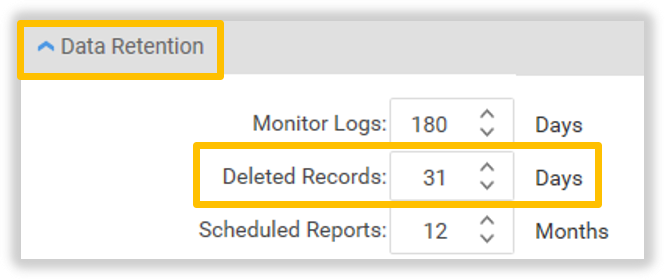
The number of days delay, until the deletion of a record is permanent, is configured by the Administrator on the General Configuration tab. For example, this setting is 31 days:
[That ‘Register List’ page][] is displayed. Click on the Register record to display its details.
The ‘Register’ page is displayed with that record. Click the Notes tab. The Notes tab is displayed.
All positions that can view this Register record can add notes to the record. However only position’s with ‘Edit’ access to a Register record can edit and delete notes on that record.
Add a new Note
Click the Add Note icon.
Enter the Note text in the edit area 1, and click the Save 2 icon to save this note.
Or, click the Cancel 3 icon to stop adding the Note.
Edit a Note
Click the Edit Note icon on the Note to update.
Update the Note text in the edit area 1, click the Save 2 icon to save these changes.
Or, click the Cancel 3 icon to stop updating the Note.
Delete a Note
Click the Delete Note icon on the Note to delete.
The ‘Confirm’ window appears. Click OK to delete, or click Cancel.
Manage Attachments
Attachments relating to this Register record can be added here.



 icon of a Register; e.g. Gifts and Hospitality. (A hint will appear if you hover over each create icon.)


 icon next to the field that needs correcting.


 Deleting a Register also deletes the associated Tasks, Attachments and History. This may have auditing implications.